ClassMarker is a secure, professional, web-based exam and quiz maker trusted by businesses, educators, trainers, HR teams, and government organizations. Classmaker login offers a controlled environment for building tests, assigning them to learners, monitoring results, and ensuring compliance with industry-level security standards.
ClassMarker login applies to two main user groups:
- Creators/Admins: teachers, trainers, HR departments, and businesses who log in to create tests, assign them to users, and manage results.
- Test takers: students, employees, or candidates who log in (when required) to take their assigned exams through Groups or direct links.
Understanding which login path applies to your role helps avoid confusion and ensures smooth access to your tests and dashboard.
Official ClassMarker Login Page and Account Types
The primary login entry point is found by clicking “Log in” on the official classmarker.com website.
ClassMarker supports two account types:
Creator/Admin Accounts
These accounts are used to:
- Build tests and question banks
- Manage Groups for registered users
- Create direct Links for open-access testing
- View results, analytics, certificates, and settings
Test Taker Accounts
Used when instructors enroll students or employees in Groups, allowing them to see all assigned tests in one place after logging in.
Security Note:
Always log in through the official ClassMarker domain (classmarker.com). Avoid third-party links or unofficial login pages to protect account data.
Registering for ClassMarker Before Your First Login
ClassMarker provides two registration flows:
Register to Create Tests
For instructors, trainers, businesses, government agencies, and professional organizations.
You’ll be asked for:
- Name
- Password
- Organization or usage type
- Acceptance of terms
After registration, you can immediately log in and begin creating tests.
Register to Take Tests
For test takers who were instructed to create an account.
After registering, they can log in and access tests assigned by their teacher or organization—usually through a Group.
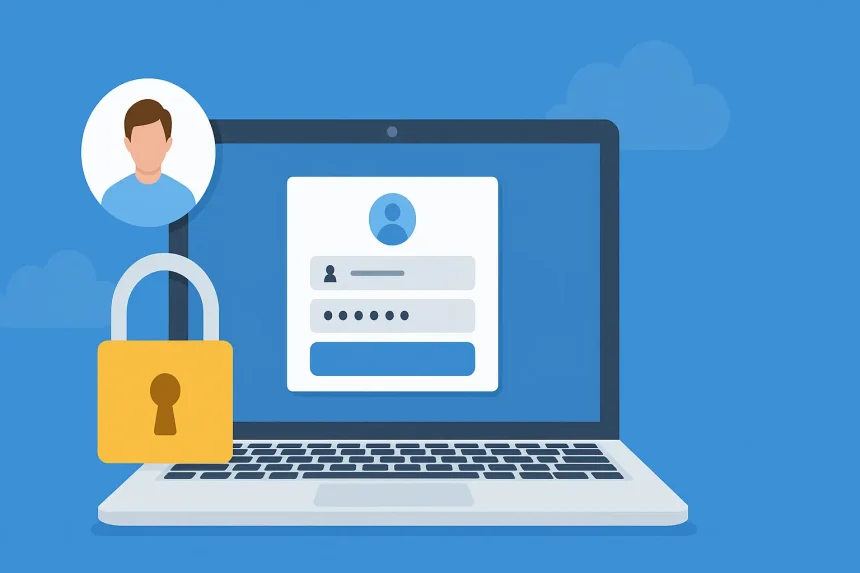
How to Log In as a Test Creator/Admin
Logging in as a test creator is straightforward:
- Visit classmarker.com
- Click “Log in”
- Enter your email/username and password
- Optionally choose “Stay logged in” (avoid on shared devices)
- Access the dashboard
Once logged in, creators can navigate to:
- Tests
- Question Bank
- Groups
- Links
- Results
- Settings
- Account Preferences
This dashboard serves as the central hub for managing every part of the online testing workflow.
Read Also: LVAction Login: Guide to Accessing the LVAction Sportsbook Safely
How to Log In and Take Tests as a Test Taker
ClassMarker supports two test-taking workflows:
Group-Based Testing (Requires Login)
Students or employees who were added to a Group can:
- Log in on classmarker.com
- Open their dashboard
- See all assigned tests
- View deadlines, attempt limits, and progress
Link-Based Testing (May Not Require Login)
When an instructor shares a direct test link, users can often take the test without signing in.
Depending on test settings, they may:
- Enter their name or ID
- Fill identity fields
- Continue directly to the exam
Test takers only need a login if their instructor specifically uses Group-based testing.
Secure Login, Privacy, and Data Protection
ClassMarker maintains industry-grade security with:
- HTTPS encryption in transit and at rest
- Hosting in secure U.S. data centers
- Compliance with GDPR, CCPA, NY Ed Law
- Strict password policies
- Role-based access to prevent unauthorized entry
Users control their data and can delete personal information or results at any time.
To stay safe:
- Never share passwords
- Use strong, unique credentials
- Administrators should avoid sharing a single login and instead use Assistant roles
What Creators Can Do After Logging In
After logging in, creators gain full access to test creation and management tools, including:
- Build tests and surveys
- Add questions from the Question Bank
- Set time limits, pass marks, attempts, and availability windows
- Enable anti-cheating tools like full-screen mode and tab-switch detection
- Assign tests through Groups or Links
- Track real-time test performance
- Manage certificates, branding, and SCORM compliance
- Reopen or reset completed tests
- Export results and analytics
The ClassMarker login is the central entry point for all these admin functions.
What Test Takers See After Logging In (Group Users)
Registered test takers who were added to Groups will see:
- A list of assigned exams
- Status indicators (Not started / In progress / Completed)
- Deadlines and attempt limits
- Score reports (if allowed)
- Certificates (if enabled)
Important:
Test takers using direct links may never see a login page—they simply open the link and take the test.
Troubleshooting Common ClassMarker Login Issues
Here are the most frequent problems and solutions:
Forgot Password
Use the “Forgot password?” link and follow the email instructions.
Wrong Login Type
A test taker mistakenly registers as a creator, or vice versa.
Solution: register again using the correct account type or ask the instructor for guidance.
Assigned Tests Not Visible
Possible reasons:
- Test assigned via Link, not Group
- Availability window expired
- Attempt limits reached
The test owner must update settings if needed.
Browser & Network Issues
Try:
- A modern browser (Chrome, Firefox, Edge)
- Clearing cache
- Disabling network firewalls
- Using a different device
Best Practices: Using ClassMarker Login Safely and Efficiently
For Creators
- Use separate admin logins via Assistant roles
- Avoid password sharing
- Regularly update email and password
- Review Groups and Links periodically for security
For Test Takers
- Only log in through official ClassMarker links
- Avoid public/shared devices when possible
- Log out after finishing your test
General Safety
- Never trust suspicious URLs or emails
- Bookmark the official login page
- Report phishing attempts immediately
FAQ for ClassMarker Login
Where is the official ClassMarker login page?
On classmarker.com —use the “Log in” button on the homepage or top navigation.
How do I log in to ClassMarker as a teacher or business admin?
Register as a creator, then use your email and password on the official login page to access the admin dashboard.
How do students log in to ClassMarker?
If a Group account is required, students register under “Register to take Tests” and then log in to classmarker.com.
Do I need an account to take a ClassMarker test?
Not always. Direct test links often allow test-taking without logging in.
What if I forget my ClassMarker password?
Click “Forgot password?” and follow the reset instructions emailed to you.
Is ClassMarker secure?
Yes. ClassMarker uses encrypted connections, secure data centers, and privacy-compliant frameworks.
Conclusion
The ClassMarker login system is the secure gateway to one of the most reliable online testing platforms for businesses, educators, and organizations worldwide. Whether you’re a test creator managing assessments or a test taker completing assigned exams, ClassMarker provides a clear, safe, and user-friendly login process.
By understanding the difference between admin and test taker accounts, using official ClassMarker login links, and following best practices for privacy and security, users can ensure a smooth and trustworthy testing experience.